A backup is a full copy of your VPS that you can restore from if something goes badly wrong: a bad upgrade, a deleted database, a server you've talked yourself into thinking you understand. Backups are the safety net that sits under snapshots.
Backups, snapshots and Cloud Backup: which is which?
- Backups (this article) are full copies of your VPS made from the portal. Use them for "I need to get back to how it was last night".
- Snapshots are quick save points kept with the VPS. Use them for short-term undo before a risky change. See How do I take and restore a snapshot?.
- Cloud Backup is a separate, paid backup service for your VPS or other servers. See How do I back up my Smart VPS with Cloud Backup?.
None of them replaces keeping your own copy of data you can't afford to lose. Keep one somewhere that isn't this VPS.
Before you start
- Restoring replaces the VPS's current disks with the backup. Anything you've changed since the backup was taken (files, packages, databases, mail) is gone. Copy off anything new first if you can.
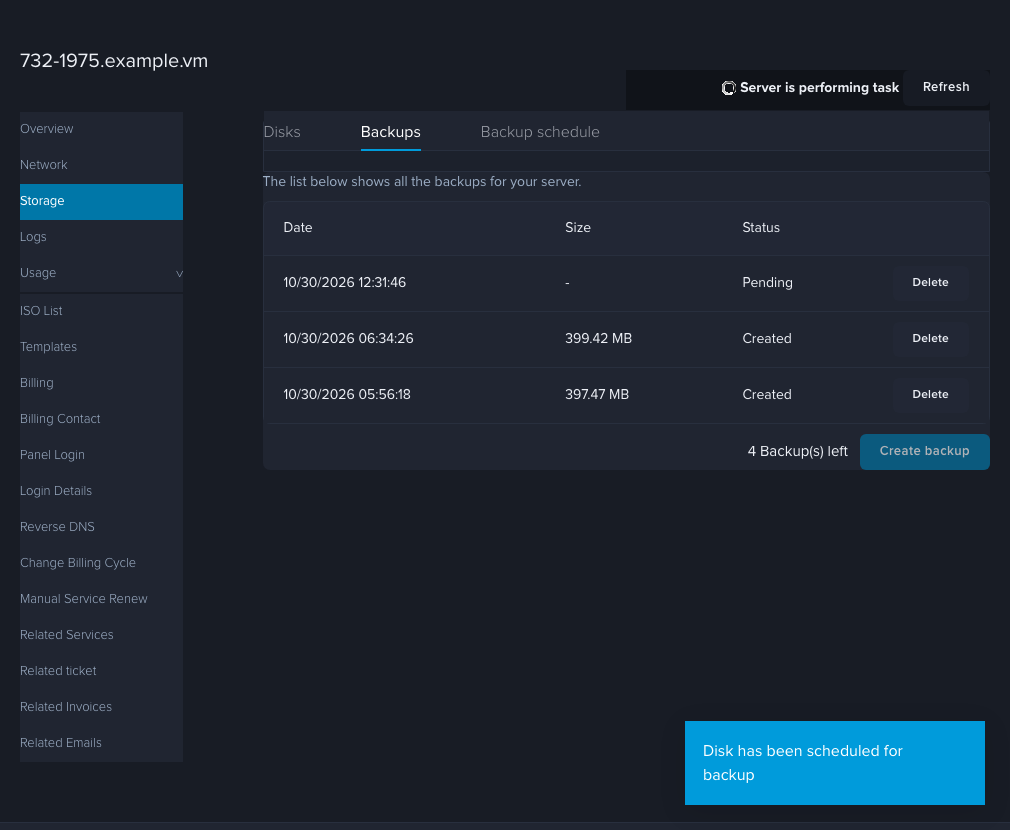
- Each backup takes a little while, and the VPS shows a "Server is performing task" banner while it runs. The action buttons are hidden until it finishes.
- The footer of the Backups list shows how many backups you have left (for example "4 Backup(s) left"). When you're out, delete one you no longer need before making another.
- The Size column shows how big each backup is.
- Logging in over SSH can fail for a moment while a backup or snapshot task is running. Wait for the task to finish and try again.
Steps
Create a backup
- Log in to the portal at https://noc.versaweb.com.
- Click Services, then Smart VPS Servers, then click your VPS.
- Click Storage in the left menu. It opens on the Disks tab, so click the Backups tab.
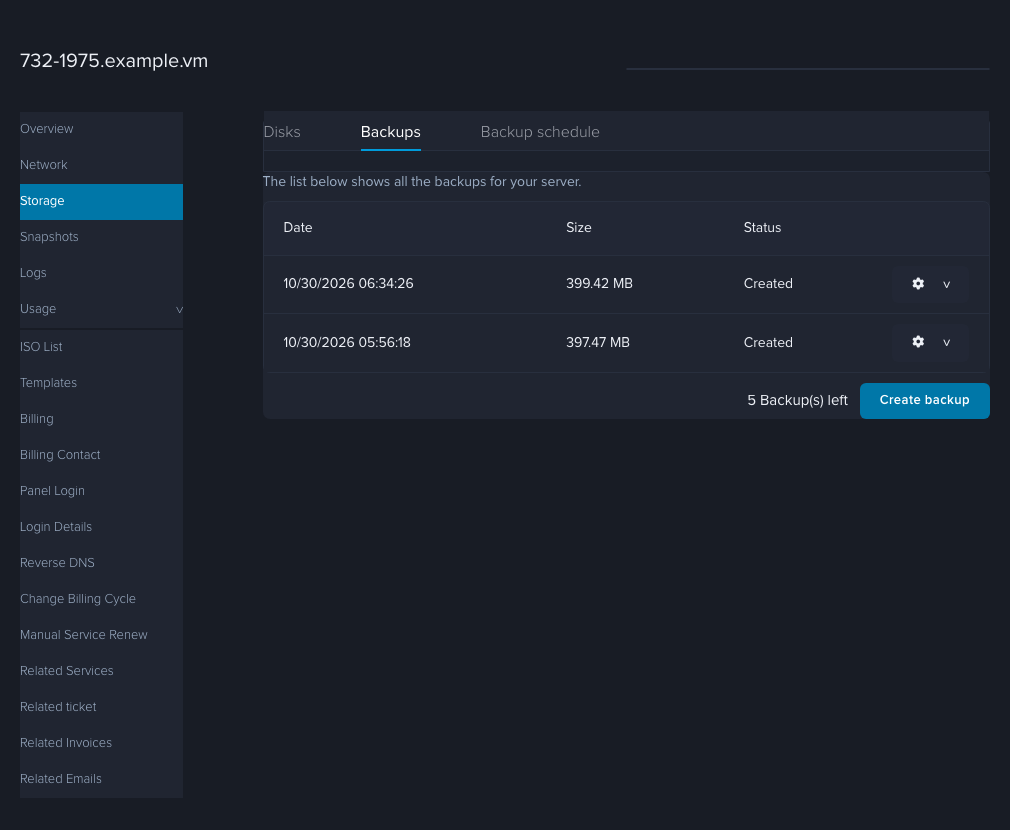
- Click Create backup. There's no extra prompt. It starts right away.
- A blue message says "Disk has been scheduled for backup" and a new row appears with the status Pending. When the status changes to Created, the backup is ready.
Restore a backup
- Open Storage and the Backups tab as above.
- On the row of the backup you want, click the gear icon, then Restore.
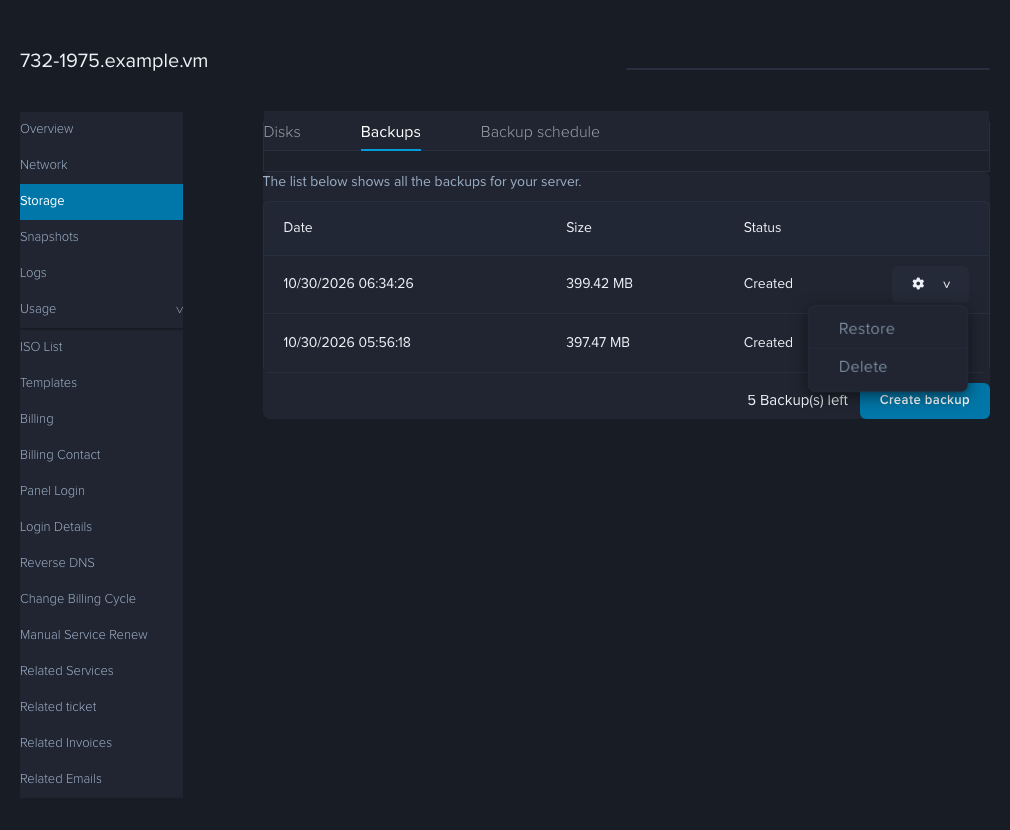
- Read the prompt, "Are you sure you wish to restore this backup?", and confirm only if you're ready to lose the changes made since.
- Your VPS restarts during a restore and comes back on by itself, so any open SSH sessions drop. It takes about 2 minutes in our testing. Wait for the "Server is performing task" banner to clear, then check the Status on the Overview tab and that your files are back. If the VPS is powered off, see How do I reboot, shut down or power on my Smart VPS?.
Delete a backup
Click the gear icon on the row and choose Delete. Do this to free a slot when you've reached your limit. A backup that is still Pending can be deleted too, though its gear icon may be hidden until it finishes. A deleted backup can't be recovered.
Automatic backups
You don't have to remember. See How do I schedule automatic snapshots and backups?.
How to check it worked
- Creating: the new row's status says Created and the Size is filled in.
- Restoring: the VPS is running and the files or settings you expected are back.
If it didn't work
- Create backup does nothing or an error appears. You may be out of backup slots. Delete an old backup and try again.
- The status stays Pending. Give it a few minutes, then reload the page. A bigger disk takes longer.
- The buttons I need are missing. If the VPS shows "Server is performing task", the actions come back when the task finishes.
- Still stuck? Open a ticket under Technical Support with your IP address and the date of the backup.