Take snapshots and backups on a timer instead of remembering to do it. Pick the days and time, say how many to keep, and the portal rotates them for you. Do it once and your future self gets to be lazy.
Snapshots or backups, or both?
- A snapshot is a quick save point stored with your VPS. Good for short-term undo, and cheap to take often. See How do I take and restore a snapshot?.
- A backup is a full copy you can restore from if something goes badly wrong. See How do I back up and restore my Smart VPS?.
A sensible pattern is a nightly backup and, if you do risky work often, a daily snapshot too. Neither replaces keeping your own copy of anything truly irreplaceable.
Before you start
- Choose how many to keep. When a schedule reaches that number, the oldest one is removed to make room for the next. Keep enough to cover the time you might need to go back, for example 7 nightly backups gives you a week.
- Pinned snapshots are protected. A snapshot you've pinned isn't removed by the schedule. If every snapshot is pinned and the schedule reaches its limit, no new snapshot is created. The portal warns about this on the Snapshot Schedule tab.
- The portal allows up to 2 snapshot schedules and 1 backup schedule per VPS. At the limit, the Create new schedule button is replaced by "Snapshot limit reached" or "Backup job limit reached". Edit an existing schedule instead.
- You also can't create more snapshots than your account allows. The Snapshots tab shows how many you have left.
- While any snapshot exists you can't extend your VPS's storage.
- A schedule you set up here runs on its own. Check the Next snapshot or Next backup column to see when it will fire, and look at the list now and then to make sure it is.
Steps
Schedule snapshots
- Log in to the portal at https://noc.versaweb.com.
- Click Services, then Smart VPS Servers, then click your VPS.
- Click Snapshots in the left menu, then the Snapshot Schedule tab. You may already see a schedule listed.
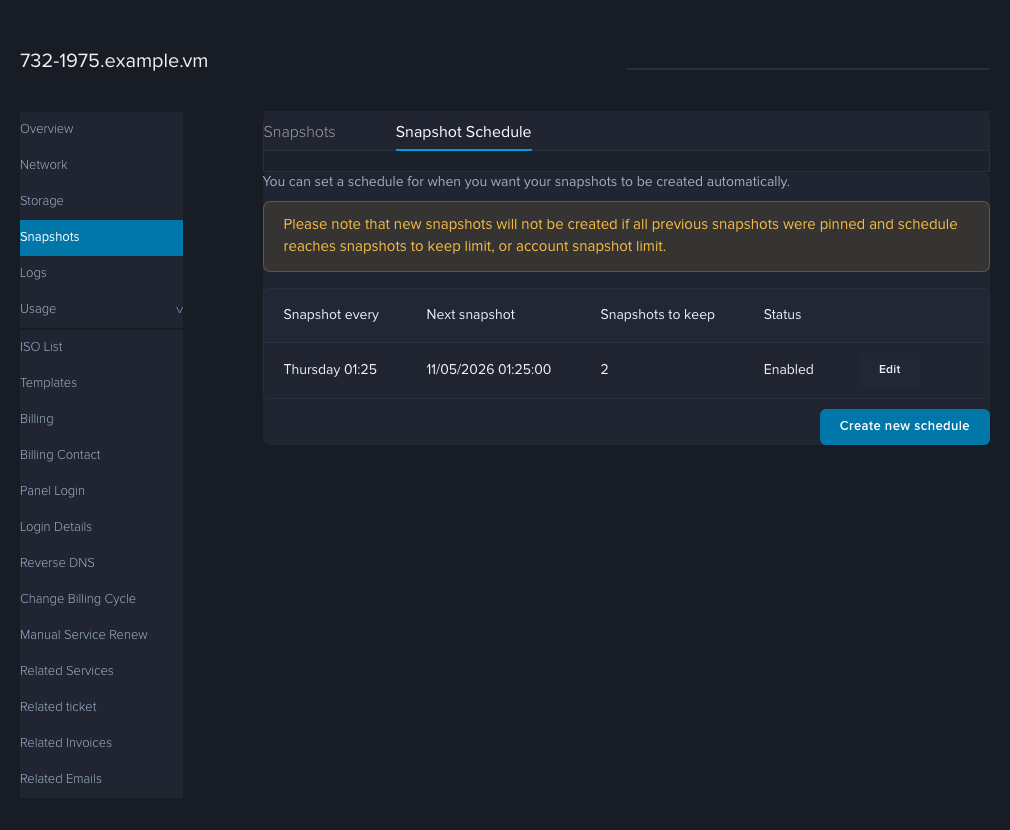
- Click Create new schedule.
- Leave Status on Enabled. Tick the Day of week boxes you want, choose the Hour and Minute, and set Snapshots to keep. Tick Include memory state if you want the running memory captured too (larger and slower; see the snapshot article).
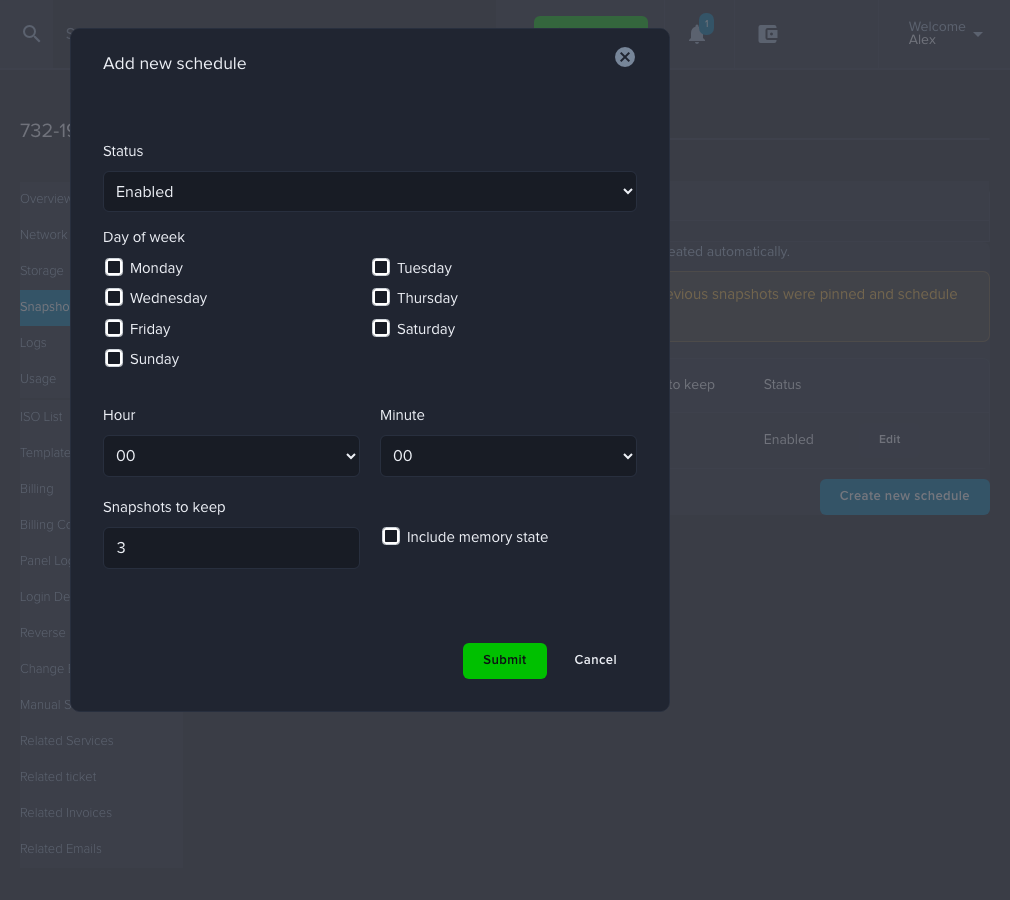
- Click Submit. The schedule appears in the list with its next run time.
To change or switch off a schedule later, click Edit on its row. You can change the days, time, number to keep and the Status from there. To switch one off, pick the second option in the Status list (Disabled; its label may show blank). A schedule you created also has a Delete button.
Schedule backups
- Open your VPS as above and click Storage in the left menu.
- Click the Backup schedule tab. If you have none, it says "Nothing to display".
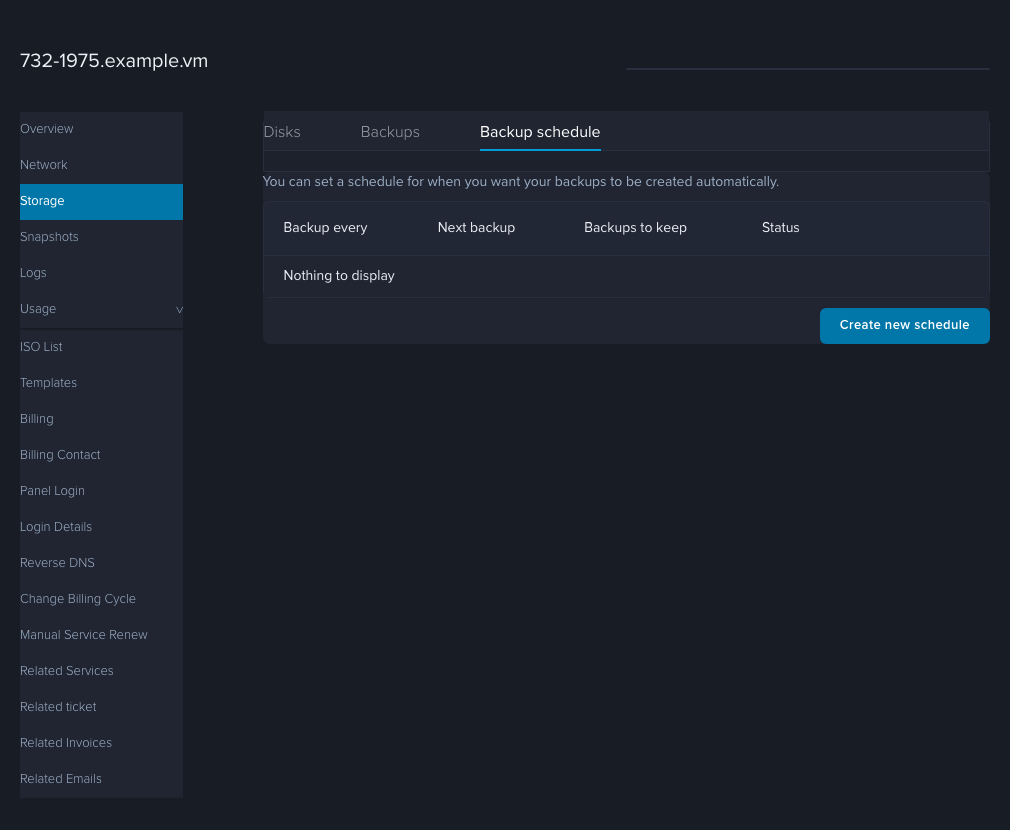
- Click Create new schedule.
- Tick the Day of week boxes, choose the Hour and Minute, and set Backups to keep (it starts at 7).
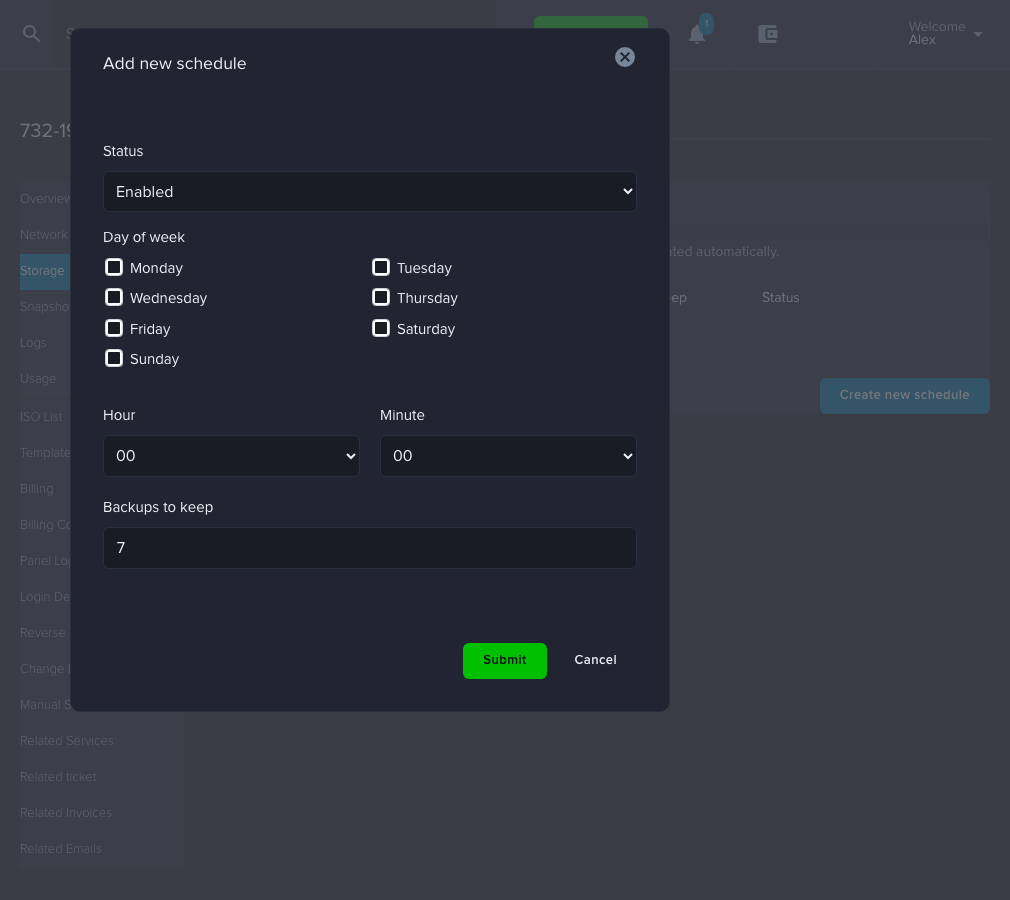
- Click Submit. The schedule appears with its Next backup time.
Schedule times are in US Pacific time, though the portal may follow your browser's time zone instead, so check the Next snapshot or Next backup column after you save. Pick a quiet hour. A backup reads the whole disk, so it's friendlier to your server when nobody is using it.
How to check it worked
- The schedule is listed with Status set to Enabled and a Next snapshot or Next backup time in the future.
- After the first run, the new snapshot or backup shows up in its list (Snapshots or Storage > Backups) with that date.
If it didn't work
- Nothing was created at the scheduled time. Check that Status is Enabled and that at least one day is ticked. For snapshots, check you haven't hit your snapshot limit and that your snapshots aren't all pinned.
- The times look off. Compare the Next snapshot or Next backup column with your clock. If it doesn't match what you expected, open a ticket and tell us the time you set and the time you saw.
- Still stuck? Open a ticket under Technical Support with your IP address and which schedule it is.