A snapshot is a save point for your VPS. Take one before you do something risky, like upgrading the operating system or editing a config you don't fully trust, and if it goes wrong you can roll back in a couple of minutes. It's the cheapest undo button we offer.
What is a snapshot, and how is it different from a backup?
A snapshot freezes the state of your VPS's disks at one moment. Restoring it puts the disks back exactly as they were then, so anything you changed afterwards is gone.
It is not a backup. A snapshot is stored alongside your VPS, so if the VPS is lost or you delete it, the snapshots go with it. Use snapshots for short-term "undo", and use backups for anything you can't afford to lose. Snapshots are best kept short-lived: take one, make your change, confirm it works, then delete the snapshot.
Should I tick "Memory"?
The portal's own help text at the top of the Snapshots page talks about memory. What you get depends on this box, so here's the short version.
- Memory off (the default): the snapshot captures the disks only. It's quick and small. Restoring it is like going back to a disk image and starting the server again. The VPS comes back powered off after a restore, so you'll need to power it on. Anything held only in RAM, such as an open editor or a database's in-flight work, is gone.
- Memory on: the snapshot also captures the running memory. It's larger and takes longer to create, but a restore brings the VPS back to the exact running state it was in, programs and all.
For a quiet server, memory off is fine. For a busy database or an app you can't restart easily, tick Memory, or stop the service before you snapshot.
Before you start
- Restoring discards everything you've done since the snapshot (files, packages, config, database changes). Copy off anything you want to keep first.
- Names: letters, numbers and underscores only, at least 2 characters, starting with a letter. Hyphens and spaces are rejected, so
before_upgradeworks andbefore-upgradedoesn't. - Storage: while any snapshot exists you can't extend your VPS's storage. Delete all snapshots first if you want to upgrade the disk.
- Pinned: a pinned snapshot is protected from automatic cleanup by a schedule (see the schedule article). You can still delete it yourself.
- Limits: the footer of the Snapshots list shows how many you have left (for example "3 Snapshots(s) left"). If you're out, delete one you no longer need.
Steps
Take a snapshot
- Log in to the portal at https://noc.versaweb.com.
- Click Services, then Smart VPS Servers, then click your VPS.
- In the VPS menu on the left, click Snapshots. You'll see the list of snapshots you already have.
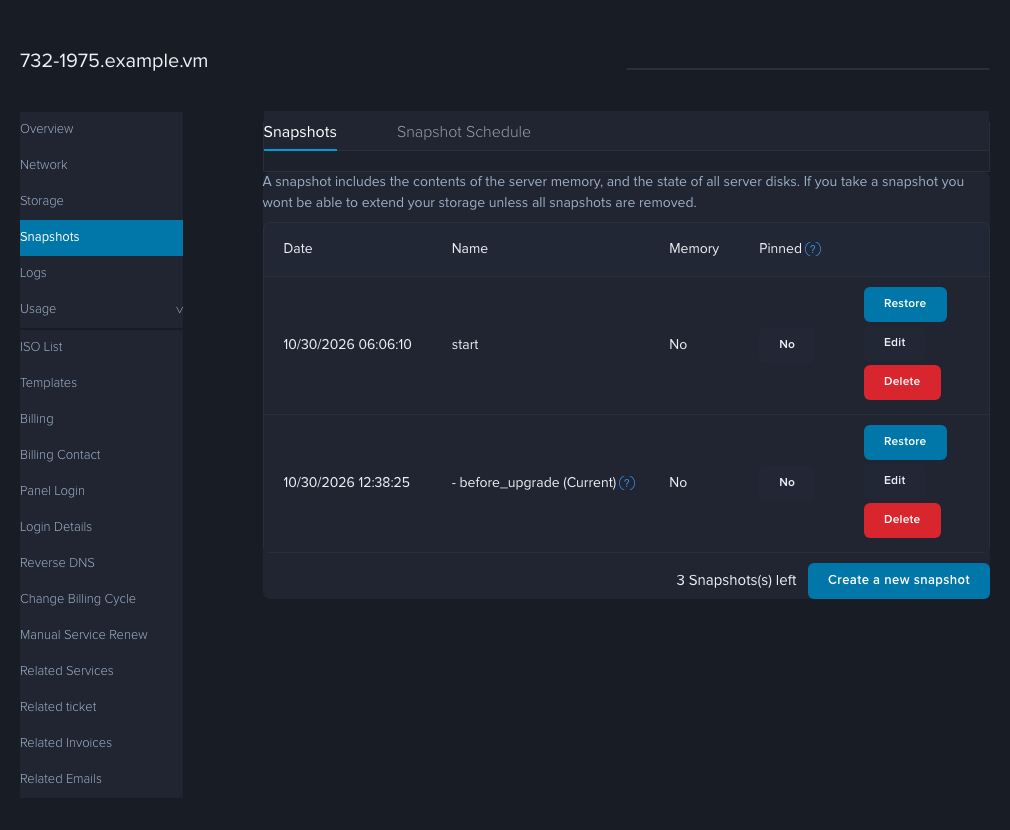
- Click Create a new snapshot.
- Type a Snapshot name, tick Memory if you want it (see above), and add a Description so future-you remembers why.
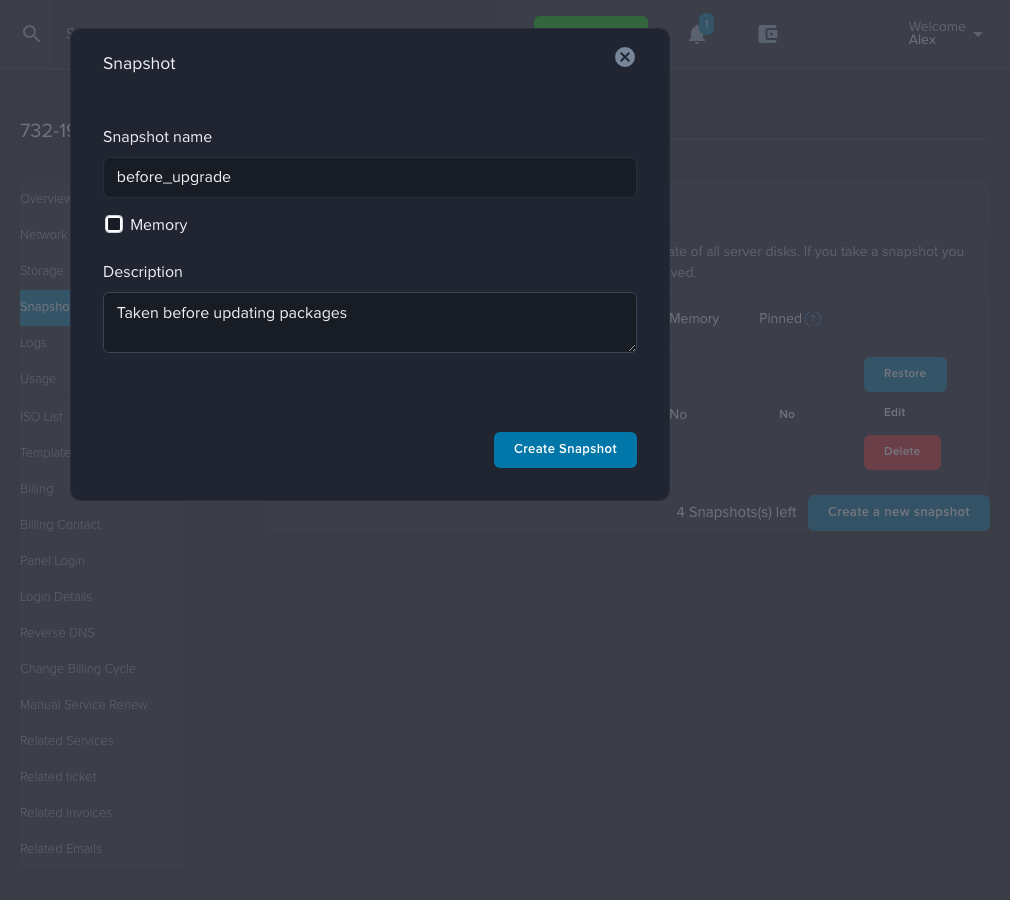
- Click Create Snapshot. The new snapshot appears in the list with (Creating) next to it. Wait until that disappears before you start your change. The finished snapshot is marked (Current).
Restore a snapshot
- Open Snapshots as above and find the snapshot you want.
- Click Restore on its row.
- Read the prompt, "Are you sure you want to restore to this snapshot?", and confirm. The status shows ROLLBACK while it runs.
- A restore takes a few minutes (about 3 to 4 in our testing), and the Snapshots item disappears from the left menu while it runs. When it comes back, check the Status on the Overview tab. If the VPS is powered off (normal for a snapshot taken without Memory), click Startup to power it on. See How do I reboot, shut down or power on my Smart VPS?.
Rename or delete a snapshot
- Edit lets you change the name and description.
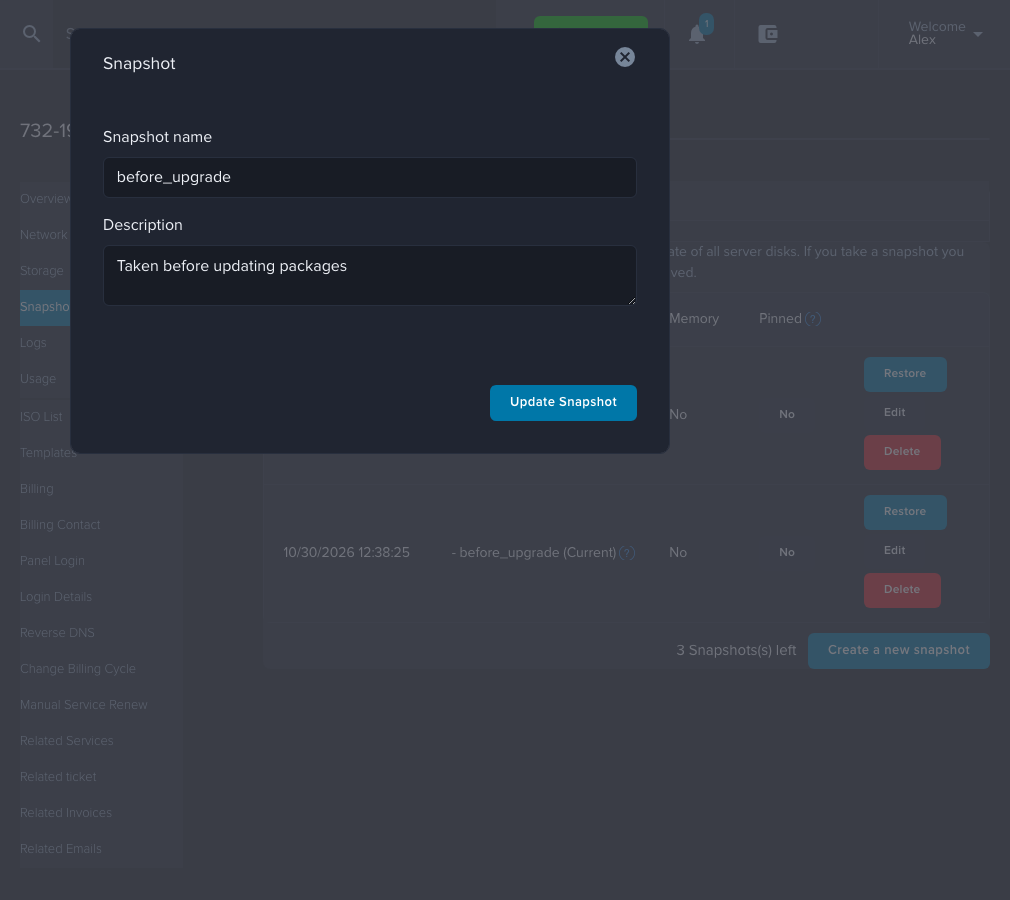
- Delete removes it. The portal asks you to confirm first. Once it's gone you can't get it back.
How to check it worked
- After creating: the snapshot is in the list with today's date and the name you chose.
- After restoring: the files or settings you changed after the snapshot are back to how they were, and the VPS is running again.
If it didn't work
- The name turned red or the button did nothing. Check the name rules above. Hyphens are the usual culprit.
- No snapshots left. Delete an old one, then try again.
- (Creating) or "Server is performing task" won't clear. Give it a few minutes, then reload the page. Snapshots with Memory on take longer.
- The VPS is off after a restore. Power it on from the Overview tab.
- Still stuck? Open a ticket under Technical Support with your IP address, the snapshot name and what you clicked.