You can restart, shut down or power on your VPS from the portal in a couple of clicks, no ticket needed. If a server has gone quiet, a reboot fixes more than we'd like to admit.
Reboot, shutdown, reset: which one?
- Reboot restarts the VPS in the normal way. This is the one you want most of the time.
- Shutdown asks the operating system to shut itself down cleanly, then the VPS stays off until you start it.
- Reset restarts the VPS immediately, like pressing the reset button on a desktop. The operating system doesn't get a chance to tidy up, so open files may be left in an unclean state. Use it only if Reboot doesn't respond.
- Startup starts a VPS that is off. It appears in place of Reboot while the VPS is powered off.
Steps
- Everything running on the VPS stops when it restarts or shuts down. Save open work and let long jobs finish first.
- Prefer Reboot or Shutdown over Reset whenever the VPS is responsive.
- If you're not sure why it stopped responding, open the console first and watch what it says. See How do I open the console for my Smart VPS?.
Reboot
- Log in to the portal at https://noc.versaweb.com.
- Click Services, then Smart VPS Servers, then click your VPS.
- On the Overview tab, click Reboot at the top right.
- Read the prompt, "Are you sure you want to reboot this VM?", and confirm.
- A blue message says the VM will be rebooted shortly. The Status shows REBOOTING and the page shows a "Server is performing task" banner.
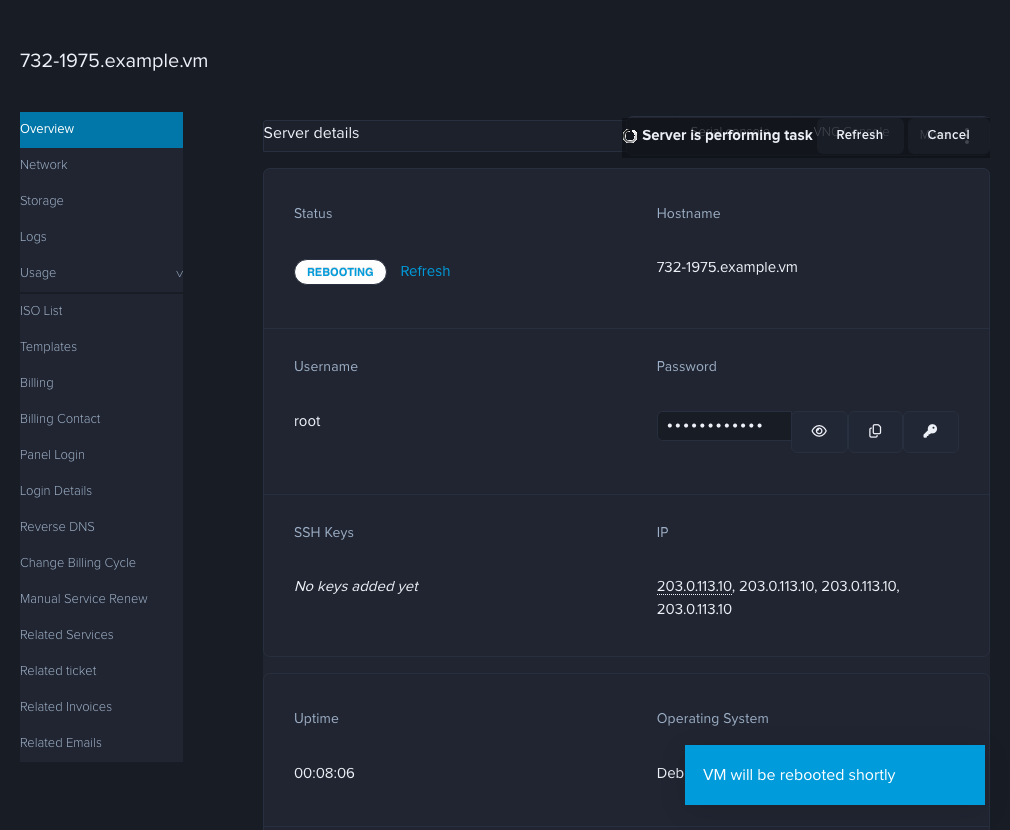
- The page updates by itself in about 15 to 20 seconds. If it doesn't, click Refresh next to the Status.
While Server is performing task is showing, the action buttons are replaced by Refresh and Cancel. Leave Cancel alone unless you want to stop the task.
Shut down
- Open your VPS's Overview tab as above.
- Click More (the three dots) at the top right, then Shutdown.
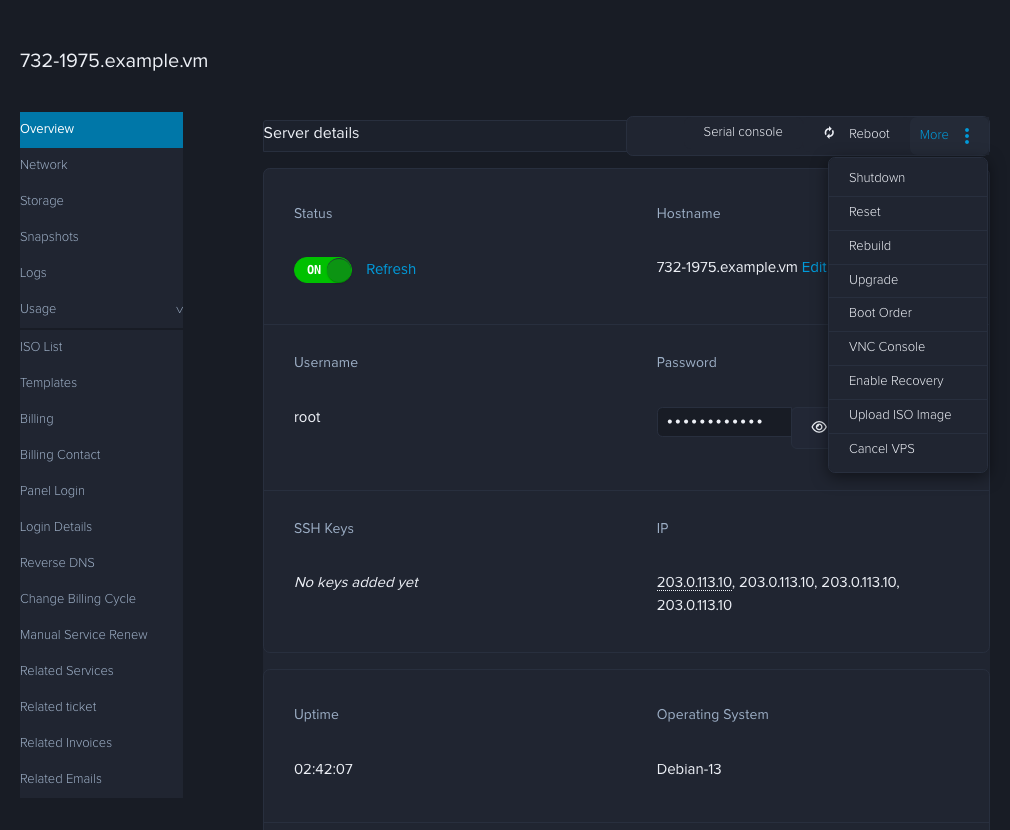
- Confirm the prompt, "Are you sure you want to shutdown this VM?".
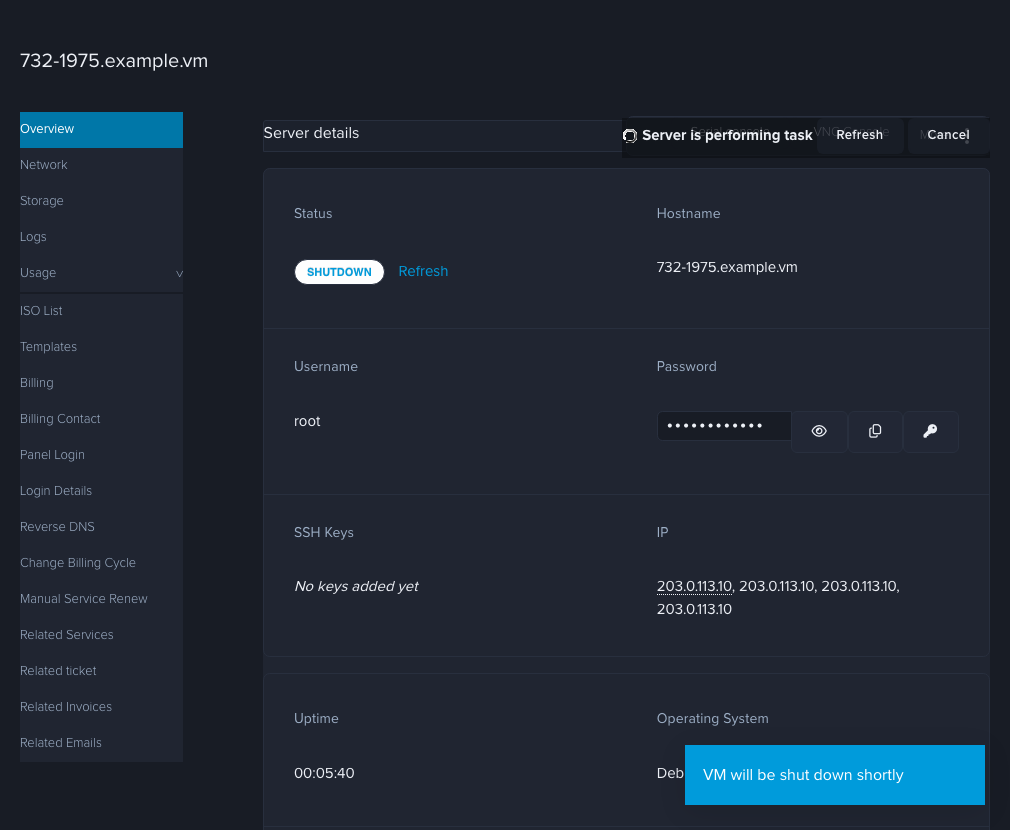
- The status changes to SHUTDOWN, and then to OFF once it's finished.
Power on
When the VPS is off, the Status switch shows OFF and the buttons at the top right change: Startup, Rebuild and More.
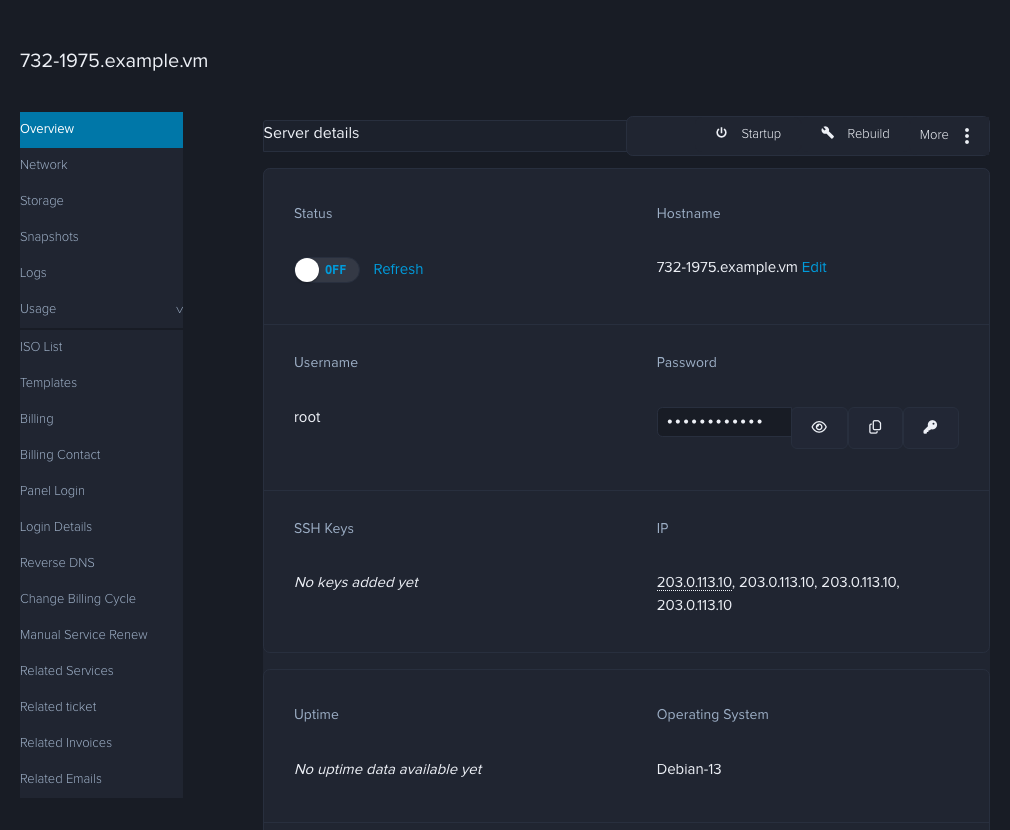
- Click Startup.
- A blue message says the VM will be powered on shortly, and the Status shows STARTING.
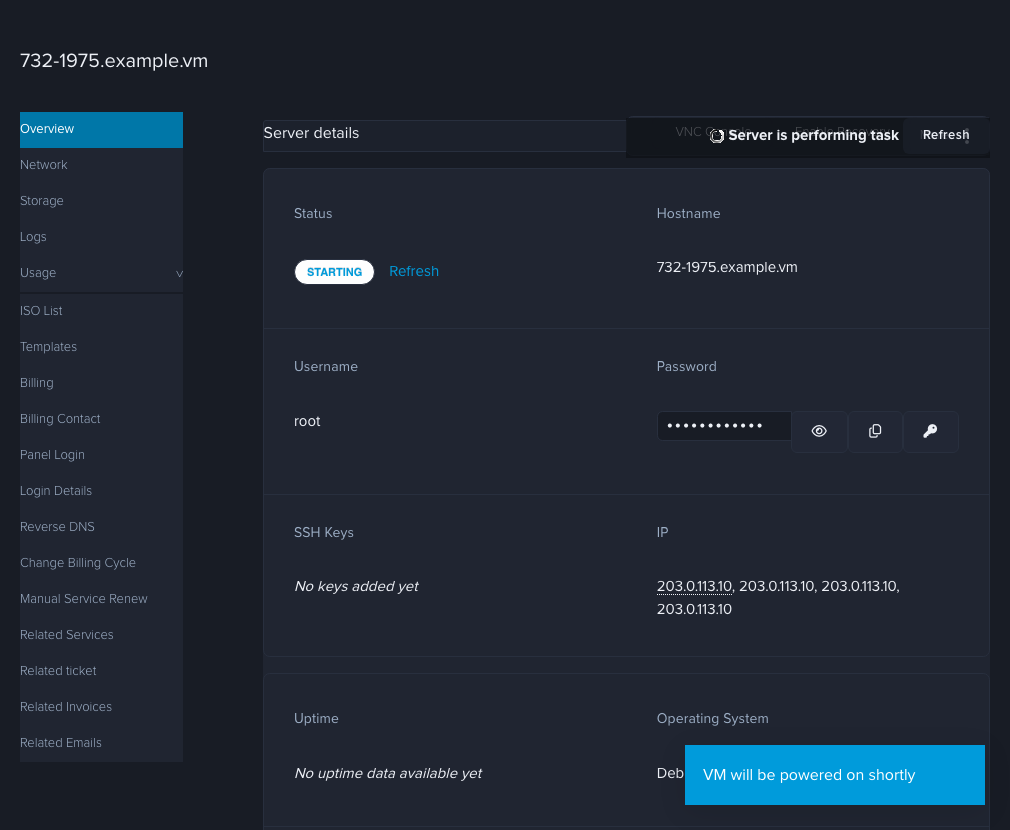
- The page updates by itself in about 15 to 20 seconds. If it doesn't, click Refresh. When the Status shows ON, your VPS is up.
Reset
Open More and click Reset if the VPS is frozen and Reboot does nothing. Only do this as a last resort.
How to check it worked
- The Status shows ON. The Uptime row can lag or show odd values for a minute, so don't rely on it.
- You can reach your VPS over SSH or your website again. Give services a minute to start after the status changes.
If it didn't work
- I can't see Reboot or Startup. If the page shows "Server is performing task", the buttons come back when that task finishes. Click Refresh now and then.
- The status says ON but I can't connect. Open the console from the same page and see where it stopped. A failed service or a locked-out login shows up there.
- It's been a long time and the status hasn't changed. Open a ticket under Technical Support with your IP address and the action you tried.
- I restored a snapshot and the VPS is off. That's normal for a snapshot taken without Memory. Use Startup.